


GB4 Emulator: Retro Gameboy
4.33.87K Reviews
App Specs
- Version
- 9.2.3
- Updated On
- License
- Free
- Downloads
- 5,000,000+
- Developer
- Metaverse Labs
- Categories
- Tools
- Platform
- Android
Screenshots

 Analysis by AppCompare
I find that the first hurdle with a handheld emulator is usually not the game itself; it is getting from an empty app to a playable session without confusion. GBA4 Emulator: Classic Gameboy is a tools app from Metaverse Labs, and the basic idea is straightforward: it recreates a classic handheld gaming setup on a phone. The part that takes more thought is preparing the game files and checking that they are available to the app. If you expect a ready-made library of games, that distinction matters before you install it.
What to sort out before your first game
The app is free to install and rated for Everyone, while in-app purchases are listed at $1.49 to $29.99 per item. Its current version is 9.1.3, and it requires Android 7.0 or later. Those details make it worth checking your device and the purchase screen before you settle in. The app has an average rating of 4.4 from around 169,000 ratings, with more than 5 million installs; that popularity is useful context, but it cannot guarantee that a particular phone or game file will work smoothly.
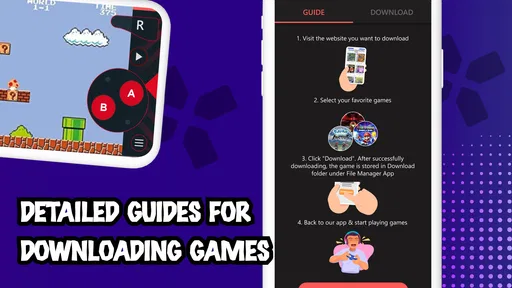
The practical preparation step is to keep track of where your game files are stored and make sure you are choosing a file you have the right to use. The app does not remove the need to obtain games separately. If a game does not appear when you try to load it, I would first check the selected file and its location rather than repeatedly changing control settings. That simple distinction can save time: file access and button layout are separate parts of the setup.
When loading does not go as planned
For a first session, I would start with one game file rather than moving a whole collection onto the phone at once. That makes it easier to tell whether the file is being recognized and gives you a clean way to test the on-screen controls. If a selection fails, return to the file picker, confirm you are opening the intended item, and try again before assuming the emulator is at fault.
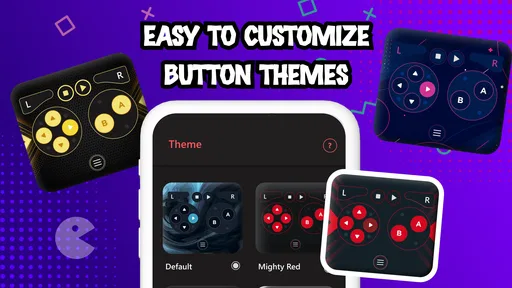
It also helps to test the buttons with a low-pressure section of a game. Touch controls can feel different from physical buttons, especially when a game asks for quick or repeated inputs. Adjusting the layout gradually is more useful than changing several controls at once: you can see whether a button’s size or position is the actual problem, then keep the change that feels better. I would leave a comfortable margin near the screen edge so my thumbs do not accidentally trigger phone gestures while playing.
Recovering a session without making a mess
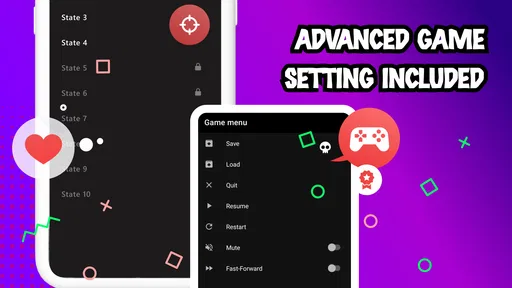
The save state option is handy when I need to pause at an awkward point, but I would treat it as a convenience rather than my only way to preserve progress. A sensible habit is to use the game’s own save method when it has one, then use a save state for a quick interruption or a difficult stretch. That gives you another route back into a session if you later load a different state by mistake.
Before leaving a game, I would also take a moment to confirm that the save or state action has completed. If you are trying several titles, give each session a clear stopping point instead of tapping around quickly between menus. This is not a guarantee against every interruption, but it reduces avoidable confusion about which game or point you meant to resume.
Worth Reading Before You Choose

EA SPORTS FC Mobile 26 Is a Bigger Football Game, but It Takes Time

Flipboard Shows What News Apps Must Do Beyond the Feed

Switching to Android Auto Means Rethinking Your Driving Routine

Google Calendar Makes a Crowded Week Easier to Manage

Ludo King Makes the Most of the Minutes Between Plans

Baby Panda World Brings Quick Play to Modern Phones, but Its Game Library Feels Busy
Separate app trouble from phone or file trouble
Emulation can involve several moving parts: the phone, the chosen game file, the controls and the app itself. If audio or play feels off, change one thing at a time and retest. Close other demanding apps if the phone is struggling, and check whether the same issue happens after reopening the game. If only one file causes trouble while another loads normally, that points toward the file rather than a general control problem.
GBA4 Emulator: Classic Gameboy is currently at version 9.1.3, but updating an app is not a universal fix for a file that cannot be opened or a layout that feels uncomfortable. I would first identify what is failing: loading, touch input, sound or saving. That makes any next step more targeted and stops a minor setup snag from turning into a string of unrelated changes.
Getting Started with GBA4 Emulator
First things first, let’s talk about getting this thing running. Installing the GBA4 Emulator: Classic Gameboy is a breeze. Just head over to your preferred app store, and a quick download later, you’re set to dive into your favorite classic games.
Once installed, the app’s interface is super intuitive. You’ll find a neat layout with easy navigation, making it simple to load up ROMs. Remember those? They’re basically the heart of the emulator, allowing you to play games you already own. A quick note: you’ll need to source these ROMs separately, but once they’re on your device, just a few taps and you’re playing.
Features That Bring Nostalgia to Life
Now, onto the juicy stuff – the features. The emulator captures the essence of the original Gameboy experience remarkably well. The graphics are crisp, retaining that pixelated charm we all love. Plus, the app runs smoothly, even on older devices, which is a huge win for those not sporting the latest tech.
One of my favorite features is the customizable controls. You can tweak the on-screen buttons to mimic your old Gameboy, or set them up however feels comfortable. It’s like having your very own personalized console.
Sound quality is another aspect where this emulator shines. The iconic bleeps and bloops take you right back, and honestly, there’s something oddly satisfying about those vintage game sounds.
The Gameplay Experience
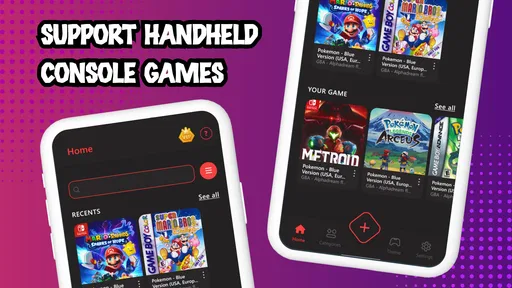
Let’s get into the gameplay itself. The emulator supports a wide range of Gameboy and Gameboy Advance games. From the legendary Pokémon series to classic Mario titles, there’s plenty to keep you entertained. The games run smoothly with no noticeable lag, which is crucial for enjoying fast-paced titles.
There’s also a save state feature, which is a lifesaver for those tricky levels. Being able to save and load your game at any point gives you the freedom to take on challenges without the anxiety of losing progress.
Choosing it for the way you actually play
I would reach for this kind of emulator when I want a short, self-contained session: a few minutes of a familiar game while waiting for a ride, or a longer stretch on the sofa when I can give the screen my attention. It is especially appealing if you already have game files you are entitled to use and enjoy adjusting touch controls until they suit your hands. For a parent introducing an older handheld game to a child, the simple visual style can be easier to approach than a modern game full of menus and online systems, though an adult should still handle file sourcing and any purchase decisions.
For example, on a commute I might load one title before leaving home, check that it opens, and then use a save point before putting the phone away. That small test is more reliable than discovering during a brief break that I still need to find a file or reposition buttons. At home, a larger screen can make touch controls easier to manage, while a compact phone is more convenient to carry but may feel crowded during games that need precise inputs.
How it differs from other ways to revisit handheld games
Compared with playing on original hardware, a phone emulator is easier to carry alongside the device you already use, and customizable on-screen buttons offer flexibility that a fixed handheld layout does not. The trade-off is tactile feel: glass cannot reproduce the certainty of physical buttons, and your fingers may cover part of the action. If precise timing is central to the game you want to play, an original handheld or a compatible controller-based setup may suit you better.
Compared with other emulator apps, the useful question is less about a broad promise of compatibility and more about your own routine. Do you want to bring your own files, arrange touch controls, and play locally on a phone? This app is aimed at that kind of use. If you want a curated catalogue that is ready to launch without handling separate files, a legitimate game collection or an official re-release is a better fit. Those alternatives can be less flexible, but they may make the path from choosing a game to playing it simpler.
Small habits that make sessions easier
One non-obvious improvement is to treat your first play as a setup session, not a test of how quickly you can start. Load a familiar game, try the buttons in a safe area, and make only one layout adjustment at a time. That gives you a personal baseline. If the next title feels awkward, you can tell whether it needs a different arrangement or whether the game itself simply relies on controls you find uncomfortable.
I would also avoid switching games immediately after creating a save state until I have a clear sense of how the app presents saved progress. The practical trade-off is convenience versus certainty: a state can make a tough section easier to revisit, but a deliberate in-game save, where available, is easier to understand later. Keeping a note of the title and stopping point can help if you rotate between several games over a week.
Who may want a different option
This is not the right choice for someone expecting games to be included, who dislikes touchscreen controls, or who wants a console-like experience with physical buttons and no file preparation. It may also frustrate a player who mainly wants the newest releases; its appeal is specifically revisiting older handheld games. Before installing, I would decide whether I am comfortable sourcing compatible files responsibly and spending a little time on setup. If either step sounds like a chore, an official collection that bundles the games may be more satisfying, even if it offers less freedom to choose files.
The app is free, but the listed in-app purchases mean I would check what a purchase applies to before confirming anything. There is no reason to assume a paid item solves a loading problem or improves a particular game. For a basic trial, begin with the free experience and a game file you already have permission to use, then decide whether the app’s workflow suits you before spending money.
My practical verdict
What I like most is the combination of a familiar handheld feel, adjustable touch controls and a way to preserve a tricky point with save states. What gives me pause is the work around the game files and the fact that touchscreens remain a compromise for fast or exact inputs. Those are not deal-breakers for everyone, but they shape whether this will feel convenient or fiddly in everyday use.
GBA4 Emulator: Classic Gameboy has a 4.4 average and a large audience, but I would judge it by a more personal test: can you load a game file you are entitled to use, make the controls comfortable, and return to your session without confusion? If yes, it can be a handy way to revisit handheld classics on Android. If you want a ready-to-play library or the feel of physical buttons, I would choose a different route. For me, it is most worthwhile when nostalgia and portability matter more than a completely friction-free setup.
Features That Bring Nostalgia to Life
Now, onto the juicy stuff – the features. The emulator captures the essence of the original Gameboy experience remarkably well. The graphics are crisp, retaining that pixelated charm we all love. Plus, the app runs smoothly, even on older devices, which is a huge win for those not sporting the latest tech.
One of my favorite features is the customizable controls. You can tweak the on-screen buttons to mimic your old Gameboy, or set them up however feels comfortable. It’s like having your very own personalized console.
Sound quality is another aspect where this emulator shines. The iconic bleeps and bloops take you right back, and honestly, there’s something oddly satisfying about those vintage game sounds.
The Gameplay Experience
Let’s get into the gameplay itself. The emulator supports a wide range of Gameboy and Gameboy Advance games. From the legendary Pokémon series to classic Mario titles, there’s plenty to keep you entertained. The games run smoothly with no noticeable lag, which is crucial for enjoying fast-paced titles.
There’s also a save state feature, which is a lifesaver for those tricky levels. Being able to save and load your game at any point gives you the freedom to take on challenges without the anxiety of losing progress.
Why You’d Want This App
If you’re still on the fence about GBA4 Emulator: Classic Gameboy, let me give you a nudge. This app is perfect for anyone who feels a pang of nostalgia for the simple, yet addictive games of the past. It’s a fantastic way to revisit childhood favorites or discover classics you might have missed.
Moreover, the emulator is lightweight and doesn’t hog your device’s resources, making it a seamless addition to your app collection. Whether you’re on a quick commute or lounging at home, having a library of classic games at your fingertips is a delightful escape.
Wrapping It Up
In a world where modern games are becoming increasingly complex, GBA4 Emulator: Classic Gameboy offers a refreshing trip down memory lane. It’s straightforward, easy to use, and most importantly, it delivers that authentic Gameboy feel.
If you’re ready to relive the glory days of gaming, or perhaps introduce a new generation to the golden era of handheld consoles, give this emulator a go. It’s a pocket-sized portal to the past, and trust me, it’s worth every nostalgic moment.
Pros
- Wide range of classic games available.
- Customizable on-screen controls.
- Supports external controllers seamlessly.
- Quick save and load state options.
- High compatibility with most ROMs.
Cons
- Ads can be intrusive at times.
- Limited support for newer ROM formats.
- Occasional crashes on older devices.
- No multiplayer or link cable support.
- Requires manual ROM file downloads.
FAQs for GB4 Emulator: Retro Gameboy
What is GBA4 Emulator: Classic Gameboy used for?
GBA4 Emulator: Classic Gameboy is an application that allows users to play Gameboy Advance games on their Android or iOS devices. It emulates the classic Gameboy hardware, providing a seamless gaming experience with features like save states, customizable controls, and the ability to load ROMs.
Is GBA4 Emulator: Classic Gameboy legal to use?
The emulator itself is legal to use, as it replicates the hardware of the Gameboy Advance. However, downloading and playing ROMs of games you do not own is illegal. Users should only use ROMs of games they own physically to stay within legal boundaries.
What features does GBA4 Emulator: Classic Gameboy offer?
GBA4 Emulator offers a variety of features, including customizable on-screen controls, save and load states for easy game progress management, and support for various file formats. It also allows users to connect external controllers for a more authentic gaming experience.
Can I use external controllers with GBA4 Emulator: Classic Gameboy?
Yes, GBA4 Emulator supports external controllers, allowing users to connect Bluetooth or USB controllers for enhanced gameplay. This feature helps replicate the original Gameboy Advance experience and provides more precise control over games.
Are there any known issues with GBA4 Emulator: Classic Gameboy?
Some users have reported occasional performance issues, such as lag or crashes, especially on older devices. It’s recommended to check for updates regularly, as developers often release patches to fix bugs and improve compatibility with newer operating systems.


